Samsung Galax Grand 2

  • Subscribe to our RSS feed.
  • Twitter
  • StumbleUpon
  • Reddit
  • Facebook
  • Digg

Friday, 27 December 2013

How to Root Galaxy S4 (Verizon) SCH-I545 on Android 4.3 Jelly Bean Firmware

Posted on 07:50 by Unknown
Samsung Galaxy S4 (Verizon) SCH-I545 users who have already updated their devices with Android 4.3 Jelly Bean, may root their devices using the tutorial below.

This tutorial uses Root Exploit package released by Senior XDA-Developers, k1mu. The Root Exploit package allows Galaxy S4 users to root their devices easily without having to wipe the device or flash a full prerooted factory image. This method completely supports Android 4.3 Jelly Bean with base firmware VRUEMJ7 and VRUEMK2.

Note: This exploit will NOT set the Knox Warranty Void flag. It will set the "Custom" flag, but that's nothing to worry about.

Disclaimer: Rooting voids the warranty of your device. We and the developer of this rooting procedures shall not be held responsible if any undesirable outcomes may happen to your device. use of this root guide is solely at your own risk!

Pre-requisites
1. Install USB Drivers for Samsung Galaxy S4 on the computer.
2. Enable USB Debugging Mode on the phone. Go to Settings >> About Phone. Tap on Build Number several times till the message shows "You are now a Developer". Enable USB debugging by navigating to Settings >> Developer Options.
3. Make a backup of all your important data before following the guide.
4. Ensure the battery of the phone is charged more than 80 percent.
5. The Root Exploit package works only on the Verizon version of the Galaxy S4 (SCH-I545). Applying this to any incorrect variant might brick the device. Verify the model number of the Galaxy S4 by navigating to Settings >> About Phone.

File Required
1. Root Exploit (saferoot.zip) - Mirror Link

Steps to Root Galaxy S4 (Verizon) SCH-I545 Running on Android 4.3 Jelly Bean Firmware
Step 1: Extract the Root Exploit package to the computer using winrar/7zip/winzip or any other extracting tool.
Step 2: Connect the Galaxy S4 to the computer using USB cable.
Step 3: On the computer, navigate to the extracted directory and double click "install.bat" file. You will see command prompt window which will detect your device and automatically run the script.
Step 4: Once the rooting procedure completes, your phone will reboot automatically.

Samsung Galaxy S4 (Verizon) SCH-I545 running on Android 4.3 Jelly Bean firmware is now rooted successfully. You can now install any app that requires root permission. Verify the root status of the device by downloading Root Checker app from Google Play Store.

Note: Tested working on the Verizon Galaxy S4 (SCH-I545), AT&T Galaxy S4 (SGH-I337) and Verizon Galaxy S3 (SCH-I535). Try it and let us know.

Thank's to all fellas at XDA who first tried out this rooting technique. This method was originally posted via XDA-Developer original thread.
Read More
Posted in Galaxy S4, How to, Jelly Bean, Root, Samsung, SCH-I545, Verizon | No comments

Thursday, 26 December 2013

How to Update Galaxy Tab 3 7.0 SM-T211 with Android 4.1.2 XXAML1 Jelly Bean Official Firmware

Posted on 19:00 by Unknown
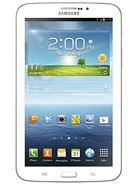
Samsung Galaxy Tab 3 7.0 with 3G connectivity (SM-T211) has already received another Android 4.1.2 Jelly Bean Over-The-Air (OTA) update with firmware build number T211XXAML1.

Firmware details
PDA: T211XXAML1
CSC: T211OXXAML2
MODEM: T211XXAML2
Version: Android 4.1.2
Build date: Dec 03, 2013
Regions: South East Europe

Samsung Galaxy Tab 3 7.0 SM-T211 users who missed the OTA update notification or unable to access the update over Samsung KIES, may follow our step-by-step guide to install the update manually.

Pre-requisites
1. Install USB Drivers for Samsung Galaxy Tab 3 7.0 on the computer.
2. Enable USB Debugging Mode on your tablet by navigating to Settings >> Developer Options.
3. Make a backup of all your important data before following the guide.
4. The Galaxy Tab 3 7.0 should be factory unlocked and not locked to any particular carrier.
5. Ensure the battery of the tablet is charged more than 80 percent.
6. The Android 4.1.2 XXAML1 Jelly Bean firmware is compatible only with the 3G version of the Samsung Galaxy Tab 3 7.0 (SM-T211). Applying this to any incorrect variant might brick the device. Verify the model number of the Galaxy Tab 3 7.0 by navigating to Settings >> About Phone.

Files Required
1. Android 4.1.2 XXAML1 Jelly Bean Firmware (Mirror Link) for Galaxy Tab 3 7.0 SM-T211
2. Odin 3.07

Steps to Update Galaxy Tab 3 7.0 SM-T211 with Android 4.1.2 XXAML1 Jelly Bean Firmware
Step 1: Extract Firmware zip file using winrar/7zip/winzip or any other extracting tool, you will get a .tar.md5 file and some other files (optional).
Step 2: Extract Odin zip file and you will get Odin3 v3.07.exe along with few other files.
Step 3: Switch off Galaxy Tab 3 7.0.
Step 4: Boot the device into Download Mode by pressing and holding Volume Down, Home and Power buttons together until a construction Android robot icon with a warning triangle appears on screen. Now press the Volume Up button to enter Download Mode.
Step 5: Run Odin on the computer as an Administrator.
Step 6: Connect the Galaxy Tab 3 7.0 to the computer using USB cable while it is in the Download Mode. Wait until Odin detects the device. When the device is connected successfully, the ID: COM box will turn to light blue with the COM port number. Additionally, the successful connected will be indicated by a message saying Added.

Note: If the Added message does not appear, then try re-install USB drivers or changing the port on the computer.

Step 7: Select the following files in Odin from extracted T211XXAML1 firmware folder:
  • Click the PDA button and select the .tar.md5 file.
  • Click the Phone button and select file with MODEM in its name. Ignore if there is no such file.
  • Click the CSC button and select file with CSC in its name. Ignore if there is no such file.
  • Click the PIT button and select the .pit file. Ignore if there is no such file.
Step 8: In Odin, enable Auto Reboot and F. Reset Time checkboxes. Also, ensure the Re-Partition checkbox is chosen only if a .pit file was chosen in the previous step.
Step 9: Verify everything suggested in Step 7 and Step 8 is done correctly. Then hit the Start button to begin the installation process.
Step 10: Once the installation process is completed, your device will restart and soon you will see a PASS message with green background in the left-most box at the very top of the Odin. You can now unplug the USB cable to disconnect your tablet from the computer.

Samsung Galaxy Tab 3 7.0 SM-T211 should be now updated with the Android 4.1.2 XXAML1 Jelly Bean official firmware. Head over to Settings >> About Phone to verify the software version running on the device.

Note: If Galaxy Tab 3 7.0 SM-T211 stuck at booting animation after Step 10 then go to recovery mode (press and hold the Volume Up, Home and Power buttons together) and perform Wipe data/Factory Reset and Wipe Cache Partition task before selecting reboot system now function. In recovery mode use Volume keys to navigate between options and Power key to select the option. Please note, performing wiping task will erase your device internal memory data and not external SD card data.

Click here to know How to Root Galaxy Tab 3 7.0 SM-T211 running on Android 4.1.2 Jelly Bean firmware.
Read More
Posted in Galaxy Tab 3 7.0, How to, Jelly Bean, Samsung, SM-T211, Update | No comments

How to Update Galaxy S3 I9300 with Android 4.3 XXUGML2 Jelly Bean Official Firmware

Posted on 16:15 by Unknown
Samsung Galaxy S3 (GT-I9300) users in Switzerland has just received the latest Android 4.3 Jelly Bean update with firmware build number I9300XXUGML2. The new official firmware is now available as an Over-The-Air (OTA) update as well as through Samsung KIES.

Firmware details
PDA: I9300XXUGML2
CSC: I9300AUTGML1
MODEM: I9300XXUGMK6
Version: Android 4.3
Build date: Dec 13, 2013
Regions: Switzerland

Samsung Galaxy S3 I9300 users who missed the OTA update notification or unable to access the update over Samsung KIES, and those who are residing outside the supported regions can now download and install the same manually, using our step-by-step guide.

Pre-requisites
1. Install USB Drivers for Samsung Galaxy S3 on the computer.
2. Enable USB Debugging Mode on the phone by navigating to Settings >> Developer Options.
3. Make a backup of all your important data before following the guide.
4. The Galaxy S3 should be factory unlocked and not locked to any particular carrier.
5. Ensure the battery of the phone is charged more than 80 percent.
6. The Android 4.3 XXUGML2 Jelly Bean firmware is compatible only with the international version of Samsung Galaxy S3 (GT-I9300). Applying this to any incorrect variant might brick the device. Verify the model number of the Galaxy S3 by navigating to Settings >> About Phone.

Files Required
1. Android 4.3 XXUGML2 Jelly Bean Firmware (Mirror Link) for Galaxy S3 I9300
2. Odin 3.07

Steps to Update Galaxy S3 I9300 with Android 4.3 XXUGML2 Jelly Bean Firmware
Step 1: Extract Firmware zip file using winrar/7zip/winzip or any other extracting tool, you will get a .tar.md5 file and some other files.
Step 2: Extract Odin zip file and you will get Odin3 v3.07.exe along with few other files.
Step 3: Switch off the Galaxy S3.
Step 4: Boot the device into Download Mode by pressing and holding Volume Down, Home and Power buttons together until a construction Android robot icon with a warning triangle appears on screen. Now press the Volume Up button to enter Download Mode.
Step 5: Run Odin on the computer as an Administrator.
Step 6: Connect the Galaxy S3 to the computer using USB cable while it is in the Download Mode. Wait until Odin detects the device. When the device is connected successfully, the ID: COM box will turn to light blue with the COM port number. Additionally, the successful connected will be indicated by a message saying Added.

Note: If the Added message does not appear, then try re-install USB drivers or changing the port on the computer.

Step 7: Select the following files in Odin from extracted I9300XXUGML2 firmware folder:
  • Click the PDA button and select the .tar.md5 file.
  • Click the Phone button and select file with MODEM in its name. Ignore if there is no such file.
  • Click the CSC button and select file with CSC in its name. Ignore if there is no such file.
  • Click the PIT button and select the .pit file. Ignore if there is no such file.
    Step 8: In Odin, enable Auto Reboot and F. Reset Time checkboxes. Also, ensure the Re-Partition checkbox is chosen only if a .pit file was chosen in the previous step.
    Step 9: Verify everything suggested in Step 7 and Step 8 is done correctly. Then hit the Start button to begin the installation process.
    Step 10: Once the installation process is completed, your phone will restart and soon you will see a PASS message with green background in the left-most box at the very top of the Odin. You can now unplug the USB cable to disconnect your device from the computer.

    Samsung Galaxy S3 I9300 should be now updated with official Android 4.3 XXUGML2 Jelly Bean. Head over to Settings >> About Phone to verify the software version running on the device.

    Note: If Galaxy S3 I9300 stuck at booting animation after Step 10 then go to recovery mode (press and hold the Volume Up, Home and Power buttons together) and perform Wipe data/Factory Reset and Wipe Cache Partition task before selecting reboot system now function. In recovery mode use Volume keys to navigate between options and Power key to select the option. Please note, performing wiping task will erase your device internal memory data and not external SD card data.

    Click here to know How to Root Galaxy S3 I9300 running on Android 4.3 Jelly Bean firmware.
    Read More
    Posted in Galaxy S3, How to, I9300, Jelly Bean, Samsung, Update | No comments

    How to Update Galaxy Note 10.1 N8000 with Android 4.1.2 UBCML2 Jelly Bean Official Firmware

    Posted on 16:10 by Unknown
    Samsung has rolled out another Android 4.1.2 Jelly Bean update with firmware build number N8000XXCMI2 for the Brazilian owners of the Galaxy Note 10.1 (GT-N8000). The new official update is currently available as an Over-The-Air (OTA) update as well as through Samsung KIES.

    Firmware details
    PDA: N8000UBCML2
    CSC: N8000ZTOCML3
    MODEM: N8000UBLL2
    Version: Android 4.1.2
    Build date: Dec 16, 2013
    Regions: Brazil

    Samsung Galaxy Note 10.1 N8000 users who missed the OTA update notification or unable to access the update over Samsung KIES, may follow our step-by-step guide to install the update manually.

    Pre-requisites
    1. Install USB Drivers for Samsung Galaxy Note 10.1 on the computer.
    2. Enable USB Debugging Mode on the phone by navigating to Settings >> Developer Options.
    3. Make a backup of all your important data before following the guide.
    4. The Galaxy Note 10.1 should be factory unlocked and not locked to any particular carrier.
    5. Ensure the battery of the phone is charged more than 80 percent.
    6. The Android 4.1.2 UBCML2 Jelly Bean firmware is compatible only with the 3G + WiFi version of Samsung Galaxy Note 10.1 with model number GT-N8000. Applying this to any incorrect variant might brick the device. Verify the model number of the Galaxy Note 10.1 by navigating to Settings >> About Phone.

    Files Required
    1. Android 4.1.2 UBCML2 Jelly Bean Firmware (Mirror Link) for Galaxy Note 10.1 N8000
    2. Odin 3.07

    Steps to Update Galaxy Note 10.1 N8000 with Android 4.1.2 UBCML2 Jelly Bean Firmware
    Step 1: Extract Firmware zip file using winrar/7zip/winzip or any other extracting tool, you will get a .tar.md5 file and some other files (optional).
    Step 2: Extract Odin zip file and you will get Odin3 v3.07.exe along with few other files.
    Step 3: Switch off the Galaxy Note 10.1.
    Step 4: Boot the device into Download Mode by pressing and holding Volume Down and Power buttons together until a construction Android robot icon with a warning triangle appears on screen. Now press the Volume Up button to enter Download Mode.
    Step 5: Run Odin on the computer as an Administrator.
    Step 6: Connect the Galaxy Note 10.1 to the computer using USB cable while it is in the Download Mode. Wait until Odin detects the device. When the device is connected successfully, the ID: COM box will turn to light blue with the COM port number. Additionally, the successful connected will be indicated by a message saying Added.

    Note: If the Added message does not appear, then try re-install USB drivers or changing the port on the computer.

    Step 7: Select the following files in Odin from extracted N8000UBCML2 firmware folder:
    • Click the PDA button and select the .tar.md5 file.
    • Click the Phone button and select file with MODEM in its name. Ignore if there is no such file.
    • Click the CSC button and select file with CSC in its name. Ignore if there is no such file.
    • Click the PIT button and select the .pit file. Ignore if there is no such file.
      Step 8: In Odin, enable Auto Reboot and F. Reset Time checkboxes. Also, ensure the Re-Partition checkbox is chosen only if a .pit file was chosen in the previous step.
      Step 9: Verify everything suggested in Step 7 and Step 8 is done correctly. Then hit the Start button to begin the installation process.
      Step 10: Once the installation process is completed, your phone will restart and soon you will see a PASS message with green background in the left-most box at the very top of the Odin. You can now unplug the USB cable to disconnect it from the computer.

      Samsung Galaxy Note 10.1 N8000 should be now updated with official Android 4.1.2 UBCML2 Jelly Bean. Head over to Settings >> About Phone to verify the software version running on the device.

      Note: If Galaxy Note 10.1 N8000 stuck at booting animation after Step 10 then go to recovery mode (press and hold the Volume Up and Power buttons together) and perform Wipe data/Factory Reset and Wipe Cache Partition task before selecting reboot system now function. In recovery mode use Volume keys to navigate between options and Power key to select the option. Please note, performing wiping task will erase your device internal memory data and not external SD card data.

      Click here to know How to Root Galaxy Note 10.1 N8000 running on Android 4.1.2 Jelly Bean firmware.
      Read More
      Posted in Galaxy Note 10.1, How to, Jelly Bean, N8000, Samsung, Update | No comments

      How to Update Galaxy Tab 2 10.1 (Wi-Fi) P5110 with Android 4.2.2 XXDML1 Jelly Bean Official Firmware

      Posted on 07:55 by Unknown
      The Wi-Fi version of the Samsung Galaxy Tab 2 10.1 with model number GT-P5110 has received the latest Android 4.2.2 Jelly Bean update with firmware build number P5110XXDML1. The new official update is currently available as an Over-The-Air (OTA) update as well as through Samsung KIES.

      Firmware details
      PDA: P5110XXDML1
      CSC: P5110PHNDMJ1
      MODEM: P5110XXDML1
      Version: Android 4.2.2
      Build date: Dec 16, 2013
      Regions: Netherlands

      Samsung Galaxy Tab 2 10.1 (Wi-Fi) P5110 users who missed the OTA update notification or unable to access the update over Samsung KIES, and those who are residing outside Netherlands can now download and install the same manually, using our step-by-step guide.

      Pre-requisites
      1. Install USB Drivers for Samsung Galaxy Tab 2 10.1 on the computer.
      2. Enable USB Debugging Mode on the device by navigating to Settings >> Developer Options.
      3. Make a backup of all your important data before following the guide.
      4. The Galaxy Tab 2 10.1 should be factory unlocked.
      5. Ensure the battery of the device is charged more than 80 percent.
      6. The Android 4.2.2 XXDML1 Jelly Bean firmware is compatible only with the Wi-Fi version of Samsung Galaxy Tab 2 10.1 with model number P5110. Applying this to any incorrect variant might brick the device. Verify the model number of the Galaxy Tab 2 10.1 by navigating to Settings >> About Phone.

      Files Required
      1. Android 4.2.2 XXDML1 Jelly Bean Firmware (Mirror Link) for Galaxy Tab 2 10.1 (Wi-Fi) P5110
      2. Odin 3.07

      Steps to Update Galaxy Tab 2 10.1 (Wi-Fi) P5110 with Android 4.2.2 XXDML1 Jelly Bean Firmware
      Step 1: Extract Firmware zip file using winrar/7zip/winzip or any other extracting tool, you will get a .tar.md5 file and some other files (optional).
      Step 2: Extract Odin zip file and you will get Odin3 v3.07.exe along with few other files.
      Step 3: Switch off Galaxy Tab 2 10.1.
      Step 4: Boot the device into Download Mode by pressing and holding Volume Down and Power buttons together until a construction Android robot icon with a warning triangle appears on screen. Now press the Volume Up button to enter Download Mode.
      Step 5: Run Odin on the computer as an Administrator.
      Step 6: Connect the Galaxy Tab 2 10.1 to the computer using USB cable while it is in the Download Mode. Wait until Odin detects the device. When the device is connected successfully, the ID: COM box will turn to light blue with the COM port number. Additionally, the successful connected will be indicated by a message saying Added.

      Note: If the Added message does not appear, then try re-install USB drivers or changing the port on the computer.

      Step 7: Select the following files in Odin from extracted P5110XXDML1 firmware folder:
      • Click the PDA button and select the .tar.md5 file.
      • Click the Phone button and select file with MODEM in its name. Ignore if there is no such file.
      • Click the CSC button and select file with CSC in its name. Ignore if there is no such file.
      • Click the PIT button and select the .pit file. Ignore if there is no such file.
        Step 8: In Odin, enable Auto Reboot and F. Reset Time checkboxes. Also, ensure the Re-Partition checkbox is chosen only if a .pit file was chosen in the previous step.
        Step 9: Verify everything suggested in Step 7 and Step 8 is done correctly. Then hit the Start button to begin the installation process.
        Step 10: Once the installation process is completed, your device will restart and soon you will see a PASS message with green background in the left-most box at the very top of the Odin. You can now unplug the USB cable to disconnect your device from the computer.

        Samsung Galaxy Tab 2 10.1 (Wi-Fi) P5110 should be now updated with official Android 4.2.2 XXDML1 Jelly Bean. Head over to Settings >> About Phone to verify the software version running on the device.

        Note: If Galaxy Tab 2 10.1 (Wi-Fi) P5110 stuck at booting animation after Step 10 then go to recovery mode (press and hold the Volume Up and Power buttons together) and perform Wipe data/Factory Reset and Wipe Cache Partition task before selecting reboot system now function. In recovery mode use Volume keys to navigate between options and Power key to select the option. Please note, performing wiping task will erase your device internal memory data and not external SD card data.

        Click here to know How to Root Galaxy Tab 2 10.1 (Wi-Fi) P5110 running on Android 4.2.2 Jelly Bean firmware.
        Read More
        Posted in Galaxy Tab 2 10.1, How to, Jelly Bean, P5110, Samsung, Update, Wi-Fi | No comments

        How to Update Galaxy Note 2 N7100 with Android 4.3 DDUEML4 Jelly Bean Official Firmware

        Posted on 06:50 by Unknown
        Samsung has released the latest Android 4.3 Jelly Bean update with firmware build number N7100DDUEML4 for Galaxy Note 2 (GT-N7100) users in India, Nepal, Sri Lanka, and Bangladesh. The new official firmware is now available as an Over-The-Air (OTA) update as well as through Samsung KIES.

        Firmware details
        PDA: N7100DDUEML4
        CSC: N7100ODDEML2
        MODEM: N7100DDEMK1
        Version: Android 4.3
        Build date: Dec 18, 2013
        Regions: India, Nepal, Sri Lanka, Bangladesh

        Samsung Galaxy Note 2 N7100 users who missed the OTA update notification or unable to access the update over Samsung KIES, may follow our step-by-step guide to install the update manually.

        Pre-requisites
        1. Install USB Drivers for Samsung Galaxy Note 2 on the computer.
        2. Enable USB Debugging Mode on the phone by navigating to Settings >> Developer Options.
        3. Make a backup of all your important data before following the guide.
        4. The Galaxy Note 2 should be factory unlocked and not locked to any particular carrier.
        5. Ensure the battery of the phone is charged more than 80 percent.
        6. The Android 4.3 DDUEML4 Jelly Bean firmware is compatible only with the Samsung Galaxy Note 2 with model number GT-N7100. Applying this to any incorrect variant might brick the device. Verify the model number of the Galaxy Note 2 by navigating to Settings >> About Phone.

        Files Required
        1. Android 4.3 DDUEML4 Jelly Bean Firmware (Mirror Link) for Galaxy Note 2 N7100
        2. Odin 3.07

        Steps to Update Galaxy Note 2 N7100 with Android 4.3 DDUEML4 Jelly Bean Firmware
        Step 1: Extract Firmware zip file using winrar/7zip/winzip or any other extracting tool, you will get a .tar.md5 file and some other files (optional).
        Step 2: Extract Odin zip file and you will get Odin3 v3.07.exe along with few other files.
        Step 3: Switch off the Galaxy Note 2.
        Step 4: Boot the device into Download Mode by pressing and holding Volume Down and Power buttons together until a construction Android robot icon with a warning triangle appears on screen. Now press the Volume Up button to enter Download Mode.
        Step 5: Run Odin on the computer as an Administrator.
        Step 6: Connect the Galaxy Note 2 to the computer using USB cable while it is in the Download Mode. Wait until Odin detects the device. When the device is connected successfully, the ID: COM box will turn to light blue with the COM port number. Additionally, the successful connected will be indicated by a message saying Added.

        Note: If the Added message does not appear, then try re-install USB drivers or changing the port on the computer.

        Step 7: Select the following files in Odin from extracted N7100DDUEML4 firmware folder:
        • Click the PDA button and select the .tar.md5 file.
        • Click the Phone button and select file with MODEM in its name. Ignore if there is no such file.
        • Click the CSC button and select file with CSC in its name. Ignore if there is no such file.
        • Click the PIT button and select the .pit file. Ignore if there is no such file.
          Step 8: In Odin, enable Auto Reboot and F. Reset Time checkboxes. Also, ensure the Re-Partition checkbox is chosen only if a .pit file was chosen in the previous step.
          Step 9: Verify everything suggested in Step 7 and Step 8 is done correctly. Then hit the Start button to begin the installation process.
          Step 10: Once the installation process is completed, your phone will restart and soon you will see a PASS message with green background in the left-most box at the very top of the Odin. You can now unplug the USB cable to disconnect it from the computer.

          Samsung Galaxy Note 2 N7100 should be now updated with official Android 4.3 DDUEML4 Jelly Bean. Head over to Settings >> About Phone to verify the software version running on the device.

          Note: If Galaxy Note 2 N7100 stuck at booting animation after Step 10 then go to recovery mode (press and hold the Volume Up and Power buttons together) and perform Wipe data/Factory Reset and Wipe Cache Partition task before selecting reboot system now function. In recovery mode use Volume keys to navigate between options and Power key to select the option. Please note, performing wiping task will erase your device internal memory data and not external SD card data.

          Click here to know How to Root Galaxy Note 2 N7100 running on Android 4.3 Jelly Bean firmware.
          Read More
          Posted in Galaxy Note 2, How to, Jelly Bean, N7100, Samsung, Update | No comments

          How to Update Galaxy S4 I9500 with Android 4.3 XXUEMK9 Jelly Bean Official Firmware

          Posted on 06:05 by Unknown
          The Exynos 5 octa-core variant of Samsung Galaxy S4 (GT-I9500) has already received the latest Android 4.3 Jelly Bean update with firmware build number I9500XXUEMK9. The new official firmware is now available as an Over-The-Air (OTA) update as well as through Samsung KIES.

          Firmware details
          PDA: I9500XXUEMK9
          CSC: I9500ODDEMK9
          MODEM: I9500DDUEMK9
          Version: Android 4.3
          Build date: Nov 29, 2013
          Regions: India, Nepal, Sri Lanka, Bangladesh

          Samsung Galaxy S4 I9500 users who missed the OTA update notification or unable to access the update over Samsung KIES, may follow our step-by-step guide to install the update manually.

          Pre-requisites
          1. Install USB Drivers for Samsung Galaxy S4 on the computer.
          2. Enable USB Debugging Mode on the phone by navigating to Settings >> Developer Options.
          3. Make a backup of all your important data before following the guide.
          4. The Galaxy S4 should be factory unlocked and not locked to any particular carrier.
          5. Ensure the battery of the phone is charged more than 80 percent.
          6. The Android 4.3 XXUEMK9 Jelly Bean firmware is compatible only with the Galaxy S4 with model number GT-I9500. Applying this to any incorrect variant might brick the device. Verify the model number of the Galaxy S4 by navigating to Settings >> About Phone.

          Files Required
          1. Android 4.3 XXUEMK9 Jelly Bean Firmware (Mirror Link) for Galaxy S4 I9500
          2. Odin 3.07

          Steps to Update Galaxy S4 I9500 with Android 4.3 XXUEMK9 Jelly Bean Firmware
          Step 1: Extract Firmware zip file using winrar/7zip/winzip or any other extracting tool, you will get a .tar.md5 file and some other files (optional).
          Step 2: Extract Odin zip file and you will get Odin3 v3.07.exe along with few other files.
          Step 3: Switch off the Galaxy S4.
          Step 4: Boot the device into Download Mode by pressing and holding Volume Down, Home and Power buttons together until a construction Android robot icon with a warning triangle appears on screen. Now press the Volume Up button to enter Download Mode.
          Step 5: Run Odin on the computer as an Administrator.
          Step 6: Connect the Galaxy S4 to the computer using USB cable while it is in the Download Mode. Wait until Odin detects the device. When the device is connected successfully, the ID: COM box will turn to light blue with the COM port number. Additionally, the successful connected will be indicated by a message saying Added.

          Note: If the Added message does not appear, then try re-install USB drivers or changing the port on the computer.

          Step 7: Select the following files in Odin from extracted I9500XXUEMK9 firmware folder:
          • Click the PDA button and select the .tar.md5 file.
          • Click the Phone button and select file with MODEM in its name. Ignore if there is no such file.
          • Click the CSC button and select file with CSC in its name. Ignore if there is no such file.
          • Click the PIT button and select the .pit file. Ignore if there is no such file.
            Step 8: In Odin, enable Auto Reboot and F. Reset Time checkboxes. Also, ensure the Re-Partition checkbox is chosen only if a .pit file was chosen in the previous step.
            Step 9: Verify everything suggested in Step 7 and Step 8 is done correctly. Then hit the Start button to begin the installation process.
            Step 10: Once the installation process is completed, your phone will restart and soon you will see a PASS message with green background in the left-most box at the very top of the Odin. You can now unplug the USB cable to disconnect it from the computer.

            Samsung Galaxy S4 I9500 should be now updated with official Android 4.3 XXUEMK9 Jelly Bean. Head over to Settings >> About Phone to verify the software version running on the device.

            Note: If Galaxy S4 I9500 stuck at booting animation after Step 10 then go to recovery mode (press and hold the Volume Up, Home and Power buttons together) and perform Wipe data/Factory Reset and Wipe Cache Partition task before selecting reboot system now function. In recovery mode use Volume keys to navigate between options and Power key to select the option. Please note, performing wiping task will erase your device internal memory data and not external SD card data.

            Click here to know How to Root Galaxy S4 I9500 running on Android 4.3 Jelly Bean firmware.
            Read More
            Posted in Galaxy S4, How to, I9500, Jelly Bean, Samsung, Update | No comments
            Older Posts Home
            Subscribe to: Comments (Atom)

            Popular Posts

            • How to Root Galaxy S4 (Verizon) SCH-I545 on Android 4.3 Jelly Bean Firmware
              Samsung Galaxy S4 (Verizon) SCH-I545 users who have already updated their devices with Android 4.3 Jelly Bean, may root their devices using ...
            • How to Root Galaxy Tab 3 7.0 SM-T211 on Android 4.1.2 Jelly Bean and Install CWM/TWRP Recovery
              Samsung Galaxy Tab 3 7.0 SM-T211 users who wish to root and install CWM/TWRP recovery on their devices running on Android 4.1.2 Jelly Bean ,...
            • How to Root Galaxy Note N7000 on Android 4.1.2 DXLSE Jelly Bean via Stock Recovery
              An Official Android 4.1.2 Jelly Bean Over-The-Air (OTA) update with base firmware DXLSE has been released for the international version of S...
            • How to Update Galaxy Tab 3 7.0 SM-T211 with Android 4.1.2 XXAML1 Jelly Bean Official Firmware
              Samsung Galaxy Tab 3 7.0 with 3G connectivity (SM-T211) has already received another Android 4.1.2 Jelly Bean Over-The-Air (OTA) update with...
            • How to Root Galaxy Note 2 (Canadian) SGH-I317M on Android 4.1.2 Jelly Bean Firmware
              Samsung Galaxy Note 2 (Canadian) SGH-I317M users who have already updated their devices with Android 4.1.2 Jelly Bean, may root their device...
            • How to Update Galaxy Note 8.0 (Wi-Fi) N5110 with Android 4.2.2 XXCMK1 Jelly Bean Official Firmware
              Samsung has recently released another Android 4.2.2 Jelly Bean update with firmware build number N5110XXCMK1 for the Wi-Fi variant of the Ga...
            • How to Update Galaxy Note 8.0 (Wi-Fi) N5110 with Android 4.2.2 XXCMH3 Jelly Bean Official Firmware
              Samsung has recently released the Android 4.2.2 Jelly Bean update for the Wi-Fi version of Galaxy Note 8.0 bearing model number GT-N5110. Th...
            • How to Root Galaxy Note 10.1 (2014 Edition) P600/P601 on Android 4.3 Jelly Bean Firmware
              Announced in September 2013, Samsung Galaxy Note 10.1 (2014 Edition) is now available for purchase in several countries around the world. Th...
            • How to Update Galaxy Note 2 N7100 with Android 4.3 XXUEML3 Jelly Bean Official Firmware
              Samsung has rolled out Android 4.3 Jelly Bean update with firmware build number N7100XXUEML3 for the Galaxy Note 2 (GT-N7100) users in South...
            • How to Root Galaxy Star Pro S7262 on Android 4.1.2 Jelly Bean and Install CWM Recovery
              Samsung Galaxy Star Pro with model number GT-S7262 has already received the Android 4.1.2 XXUAMK5 Jelly Bean update. The new official firmw...

            Categories

            • Asus
            • AT&T
            • B5330
            • B5330B
            • B5330L
            • Canadian
            • CWM
            • E960
            • EK-GC100
            • Galaxy Ace 2
            • Galaxy Ace 3
            • Galaxy Camera
            • Galaxy Chat
            • Galaxy Fame
            • Galaxy Grand Duos
            • Galaxy Mega 5.8
            • Galaxy Mega 6.3
            • Galaxy Note
            • Galaxy Note 10.1
            • Galaxy Note 2
            • Galaxy Note 3
            • Galaxy Note 8.0
            • Galaxy S Advance
            • Galaxy S2
            • Galaxy S2 Plus
            • Galaxy S3
            • Galaxy S3 Mini
            • Galaxy S4
            • Galaxy S4 Active
            • Galaxy S4 Mini
            • Galaxy Star Pro
            • Galaxy Tab 2 10.1
            • Galaxy Tab 2 7.0
            • Galaxy Tab 3 10.1
            • Galaxy Tab 3 7.0
            • Galaxy Tab 3 8.0
            • Galaxy Tab 7.0 Plus
            • Galaxy Tab 7.7
            • Galaxy Win
            • Google
            • How to
            • I8160
            • I8190
            • I8552
            • I9070
            • I9082
            • I9100
            • I9105
            • I9105P
            • I9152
            • I9190
            • I9195
            • I9200
            • I9205
            • I9295
            • I9300
            • I9305
            • I9305N
            • I9305T
            • I9500
            • I9505
            • I9505G
            • Install
            • Jelly Bean
            • Kernel
            • KitKat
            • Leaked
            • LG
            • LTE
            • N5100
            • N5110
            • N5120
            • N7000
            • N7100
            • N7105
            • N8000
            • N8010
            • N8100
            • Nexus 10
            • Nexus 4
            • Nexus 5
            • Nexus 7
            • P3100
            • P3110
            • P3113
            • P5100
            • P5110
            • P5113
            • P5200
            • P5210
            • P6200
            • P6210
            • P6800
            • Root
            • S6810
            • S6810P
            • S7262
            • S7270
            • S7272
            • S7275R
            • Samsung
            • SCH-I535
            • SCH-I545
            • SCH-R950
            • SCH-R970
            • SGH-I317
            • SGH-I317M
            • SGH-I337
            • SGH-I337M
            • SGH-I467M
            • SGH-I497
            • SGH-I527
            • SGH-I537
            • SGH-I747
            • SGH-I747M
            • SGH-M919
            • SGH-T779
            • SGH-T889
            • SGH-T999
            • SM-N900
            • SM-N9002
            • SM-N9005
            • SM-N9006
            • SM-N9008
            • SM-N9009
            • SM-N900P
            • SM-N900R4
            • SM-N900S
            • SM-N900T
            • SM-N900W8
            • SM-P600
            • SM-P601
            • SM-T210
            • SM-T210R
            • SM-T211
            • SM-T310
            • SM-T311
            • SM-T315
            • SPH-L710
            • SPH-L720
            • SPH-L900
            • Sprint
            • T-Mobile
            • TWRP
            • U.S. Cellular
            • Unbrick
            • Unroot
            • Update
            • Verizon
            • Wi-Fi

            Blog Archive

            • ▼  2013 (322)
              • ▼  December (50)
                • How to Root Galaxy S4 (Verizon) SCH-I545 on Androi...
                • How to Update Galaxy Tab 3 7.0 SM-T211 with Androi...
                • How to Update Galaxy S3 I9300 with Android 4.3 XXU...
                • How to Update Galaxy Note 10.1 N8000 with Android ...
                • How to Update Galaxy Tab 2 10.1 (Wi-Fi) P5110 with...
                • How to Update Galaxy Note 2 N7100 with Android 4.3...
                • How to Update Galaxy S4 I9500 with Android 4.3 XXU...
                • How to Update Galaxy Note 8.0 (Wi-Fi) N5110 with A...
                • How to Update Galaxy Note 2 N7100 with Android 4.3...
                • How to Update Galaxy S Advance I9070 with Android ...
                • How to Update Galaxy Note 2 (LTE) N7105 with Andro...
                • How to Update Galaxy Ace 3 (LTE) S7275R with Andro...
                • How to Update Galaxy Star Pro S7262 with Android 4...
                • How to Update Galaxy Note 2 (LTE) N7105 with Andro...
                • How to Update Galaxy Note 2 N7100 with Android 4.3...
                • How to Root Galaxy Note 2 (AT&T) SGH-I317 on Andro...
                • How to Update Galaxy Note 2 N7100 with Android 4.3...
                • How to Update Galaxy S3 I9300 with Android 4.3 XXU...
                • How to Root Galaxy Note 10.1 (2014 Edition) P600/P...
                • How to Update Galaxy S4 Mini I9190 with Android 4....
                • How to Root Galaxy S3 (LTE) I9305 on Android 4.3 J...
                • How to Update Galaxy S3 (LTE) I9305 with Android 4...
                • How to Update Galaxy S4 Mini (LTE) I9195 with Andr...
                • How to Update Galaxy Grand Duos I9082 with Android...
                • How to Root Galaxy Note 2 (T-Mobile) SGH-T889 on A...
                • How to Root Nexus 10 on Android 4.4.1 KOT49E KitKa...
                • How to Update Nexus 10 with Android 4.4.1 KOT49E K...
                • How to Root Nexus 7 (2013) Wi-Fi on Android 4.4.1 ...
                • How to Update Nexus 7 (2013) Wi-Fi with Android 4....
                • How to Update Nexus 5 with Android 4.4.1 KOT49E Ki...
                • How to Update Nexus 7 (2013) Mobile with Android 4...
                • How to Update Nexus 4 with Android 4.4.1 KOT49E Ki...
                • How to Root Nexus 4 on Android 4.4.1 KOT49E KitKat...
                • How to Root Nexus 7 (2013) Mobile on Android 4.4.1...
                • How to Root Nexus 5 on Android 4.4.1 KOT49E KitKat...
                • How to Update Galaxy Tab 3 7.0 (Wi-Fi) SM-T210 wit...
                • How to Update Galaxy Ace 2 I8160 with Android 4.1....
                • How to Update Galaxy Note 3 N900 with Android 4.3 ...
                • How to Update Galaxy Tab 3 7.0 (Wi-Fi) SM-T210 wit...
                • How to Root Galaxy Star Pro S7262 on Android 4.1.2...
                • How to Update Galaxy Star Pro S7262 with Android 4...
                • How to Update Galaxy Tab 3 10.1 P5200 with Android...
                • How to Update Galaxy Note 8.0 N5100 with Android 4...
                • How to Update Galaxy Tab 3 8.0 (LTE) SM-T315 with ...
                • How to Update Galaxy Tab 3 10.1 P5200 with Android...
                • How to Update Galaxy Fame (NFC) S6810P with Androi...
                • How to Root Galaxy S3 (Canadian) SGH-I747M on Andr...
                • How to Update Galaxy Note 10.1 (Wi-Fi) N8010 with ...
                • How to Update Galaxy Tab 3 8.0 SM-T311 with Androi...
                • How to Update Galaxy Ace 3 (LTE) S7275R with Andro...
              • ►  November (66)
              • ►  October (5)
              • ►  September (27)
              • ►  August (38)
              • ►  July (50)
              • ►  June (33)
              • ►  May (37)
              • ►  April (16)
            Powered by Blogger.

            About Me

            Unknown
            View my complete profile